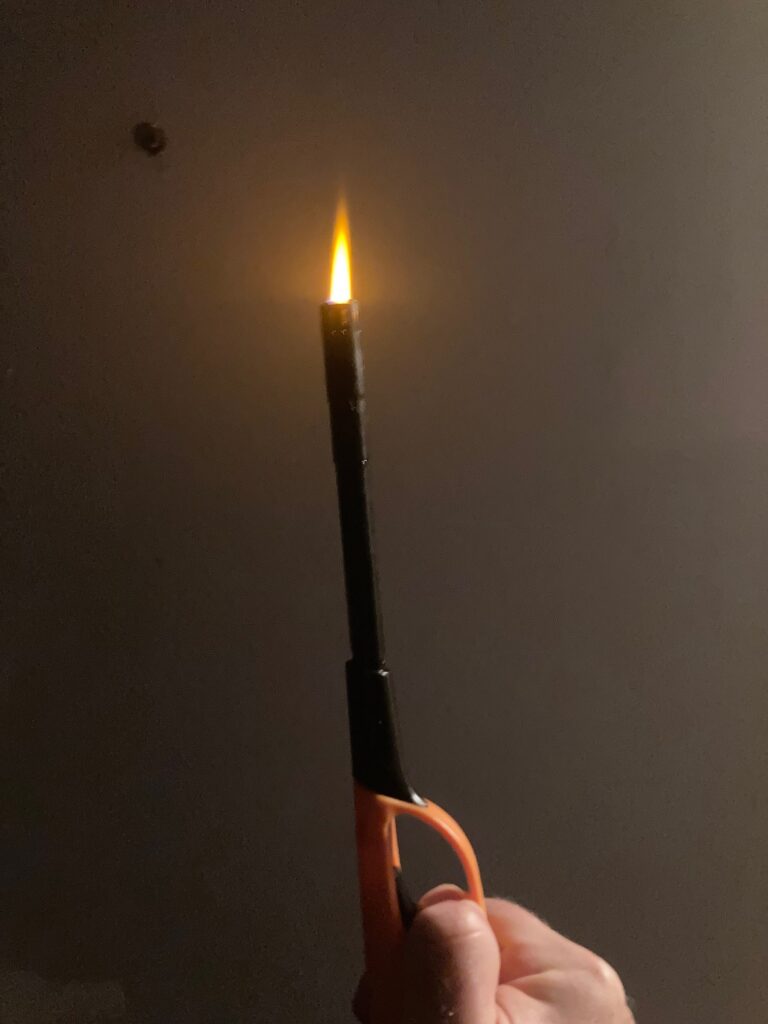
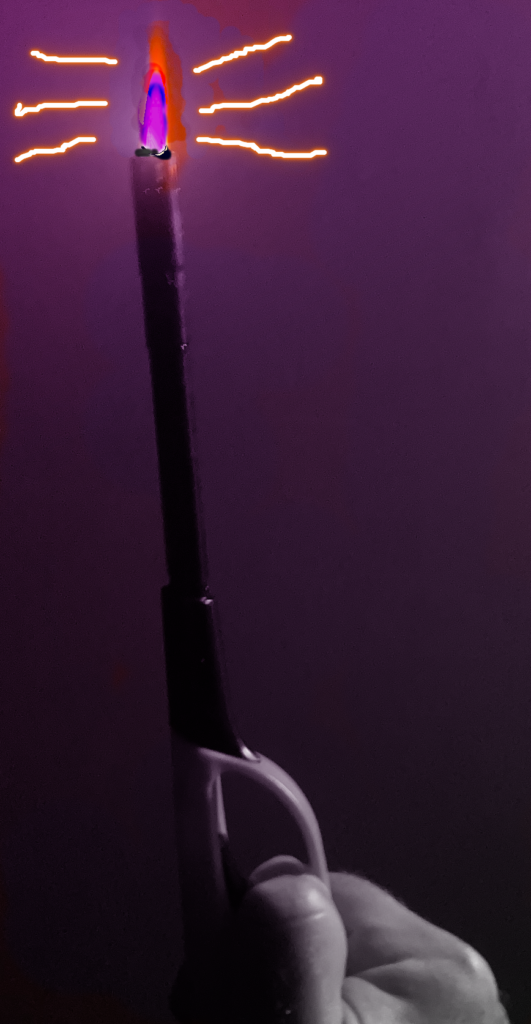
First the before and after
Editing Process
Because I took the photo one handed and was holding the lighter in my other hand, I didn’t have much opportunity to compose the shot, so the first thing I did was crop. Then I desaturated everything but the flame with the sponge tool so the rest of the image would be black and white.
Next I used the color change brush to change the flame from the original yellow to fuchsia, to make it look eerie (it is almost Halloween after all) and applied a soft color fuchsia gradient to create the illusion that the flame was shining fuchsia light on the background. I pulled the gradient on a diagonal so the strongest area would be near the candle flame Finally I added orange neon pen strokes that match the orange flame edge. To make it look more artistic and less photographic, I freehanded the tools rather than use a mask.
The gradient tool was the most difficult to work with, because there were so many options. Thankfully, the multiple levels of undo made it easy to experiment and backtrack if something didn’t work out. I tried a couple of other images before I settled on this one, but they were too monochromatic for the color changes to have the impact I wanted.
I liked Pixlr E more than I thought I would, as the lightweight interface helped me be less intimidated than I am with the GIMP or Photoshop. Although I didn’t use any AI components that I’m aware of, their presence makes me unlikely to use Pixlr again. I fully expect that a careful reading of the terms of service would reveal that everything users upload is used for AI training data, and I very much don’t want to participate in feeding that machine.