
Monthly Archives: October 2024

Photo Editing

First the before and after
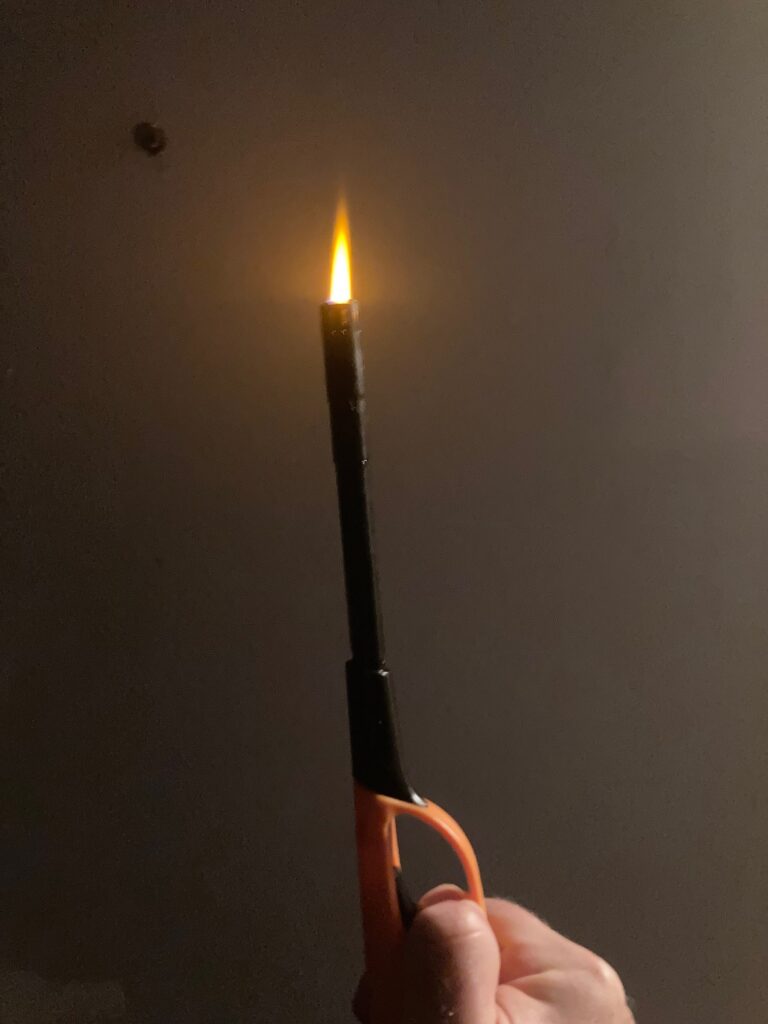

Before
After

Editing Process

Because I took the photo one handed and was holding the lighter in my other hand, I didn’t have much opportunity to compose the shot, so the first thing I did was crop. Then I desaturated everything but the flame with the sponge tool so the rest of the image would be black and white.

Next I used the color change brush to change the flame from the original yellow to fuchsia, to make it look eerie (it is almost Halloween after all) and applied a soft color fuchsia gradient to create the illusion that the flame was shining fuchsia light on the background. I pulled the gradient on a diagonal so the strongest area would be near the candle flame Finally I added orange neon pen strokes that match the orange flame edge. To make it look more artistic and less photographic, I freehanded the tools rather than use a mask.

The gradient tool was the most difficult to work with, because there were so many options. Thankfully, the multiple levels of undo made it easy to experiment and backtrack if something didn’t work out. I tried a couple of other images before I settled on this one, but they were too monochromatic for the color changes to have the impact I wanted.

I liked Pixlr E more than I thought I would, as the lightweight interface helped me be less intimidated than I am with the GIMP or Photoshop. Although I didn’t use any AI components that I’m aware of, their presence makes me unlikely to use Pixlr again. I fully expect that a careful reading of the terms of service would reveal that everything users upload is used for AI training data, and I very much don’t want to participate in feeding that machine.

The stylesheet goes external

This fortnight we were to create a resumé. The key change from previous assignments: the style sheet was now to be a separate document linked to the HTML file via link rel=”stylesheet” in the document head. This is of course the way most style sheets work, and I felt as if I were at last doing something I might do on a “real” web project.

My CSS is rusty and I did have several problems. The list of required style components made it harder to create a visually cohesive document. I would have left several things out if not for the assignment directions, including colored text and definitely the photo.

From a technical standpoint , the instruction to use <p></p> tags made for lots of white space, since most browsers add a blank line after each </p> I considered experimenting with unordered list elements and there is, it turns out a list-style-type: none attribute. I ended up not bothering, since the presence of the colored heading text and the photo made this a resumé I wasn’t going to re-use outside the class context.

The aesthetic challenge I decided to tackle was column width. Because the text lines were short, there was even more white space on the right hand side of the page. I “fixed” this by using nested <div>’s to create a two column layout, which made the page better balanced. The key attribute here is that you can make left: have a value of float rather than a set margin value. Using this I was able to put the second column next to the first. I could have used a <div> to make my heading wrap around the image, which was at the top left of the document, but I ended up brute forcing it by using negative top: values on elements that ended up in the header (top section- not <head> ) of the page. Columns via nested <div>’s was something I hadn’t done before.

I’m pondering how to move forward with an actual small website project I have to complete by the end of the year. I had planned to use a static site generator, but wonder if the relearning curve for CSS would be less than learning the new software. The problem is I don’t remember enough JavaScript to do things like menus that drop down onmouseover: which I’d really like to have. I need to decide soon.

Starting With CSS

This project was an invitation, intended to make us use the CSS box model. The assignment used an in-line style sheet rather than an external one. In completing the project I had two problems. The constraint of an inline style sheet wasn’t a good fit for the assignment and I had challenges dealing with the border attribute of the box model.

Web designers will debate forever how to decide which projects can use style attributes attached to content elements, which need inline style directives, and which are “big enough” to justify external style sheets. It seems obvious that multi-page sites need external style sheets, so one can apply the same styles to multiple pages. This brings us to the single web page and whether to use an inline sheet, or styles attached to each element.

The benefits of inline style sheets emerge when styles are reused in a document. Rather than copying the style attribute over and over again, the designer can change it once. Unfortunately, this was not that kind of document. It was short and had minimal reuse of styles. Style attributes on individual elements would have been adequate to the task. Perhaps it’s a bit much to call this a problem, since the parameters were driven by the assignment learning outcomes rather than the needs of the particular design task.

My second problem was all about borders. The W3C sandbox to which we were referred showed a nice green border. When I modeled my style sheet on that example — no border. Since we were restricted to a nearly featureless text editor, I wasted time looking for missing punctuation and unclosed tags. That was not the problem.

Like most web designers it was off to search engines. It turns out that there is a border-style attribute included in the box model, but not shown in the W3Schools sandbox. The default value for border-style is “none”. When I added a border-style=solid attribute to my div style declaration, voila , a border. I was reminded that even normally trustworthy sites can have glitches.